

Let's start by defining the size of your animation.
Enter a sentence or two describing what you want.
eg:
I want to make an animation for mobiles
OR
I want to make an animation of size 500x400 px
Enter a sentence or two describing what you want.
eg:
I want to make an animation for mobiles
OR
I want to make an animation of size 500x400 px
Let's create a background.
Enter a sentence or two describing a background. It can be a geometric background or a scene.
eg:
I want a geometric background with circles
OR
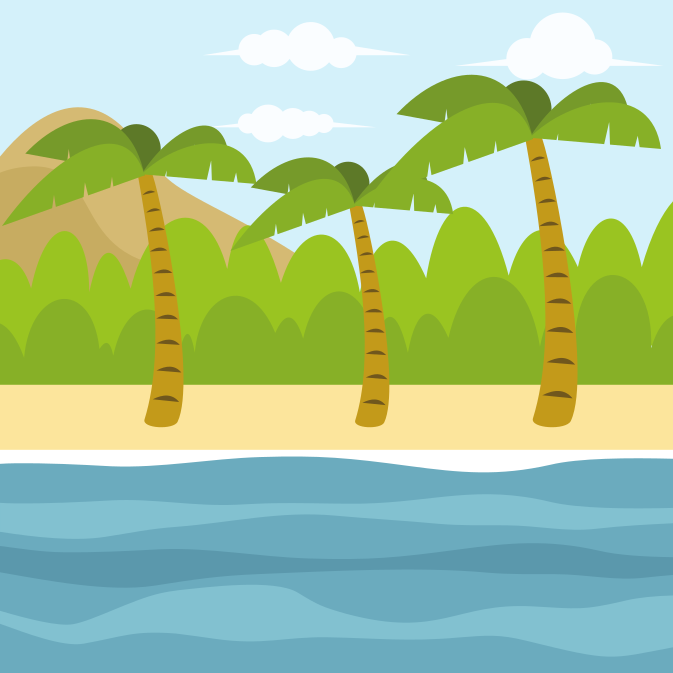
I want a beach scene
Enter a sentence or two describing a background. It can be a geometric background or a scene.
eg:
I want a geometric background with circles
OR
I want a beach scene
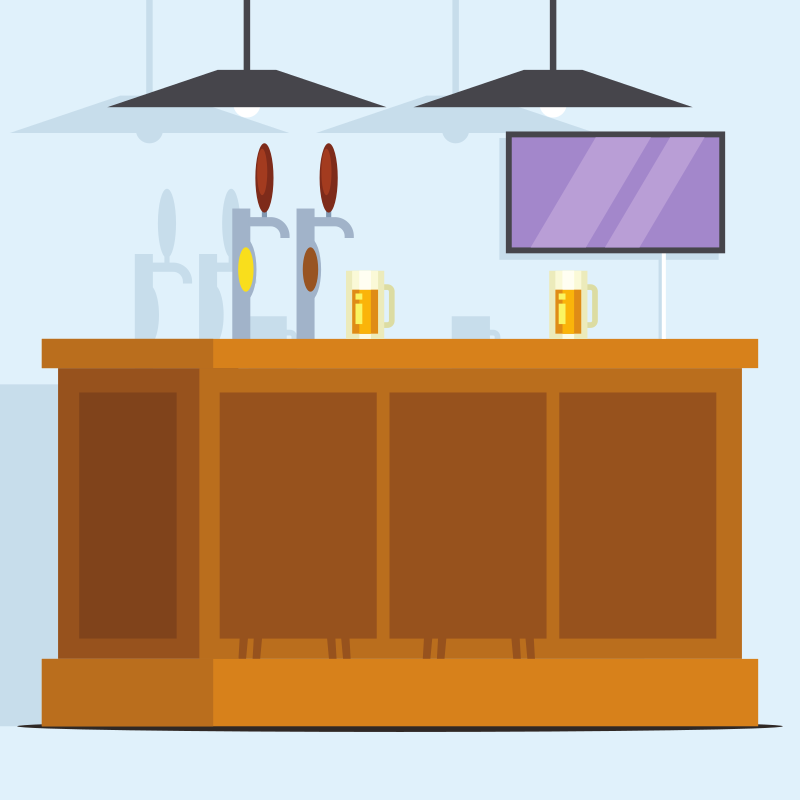
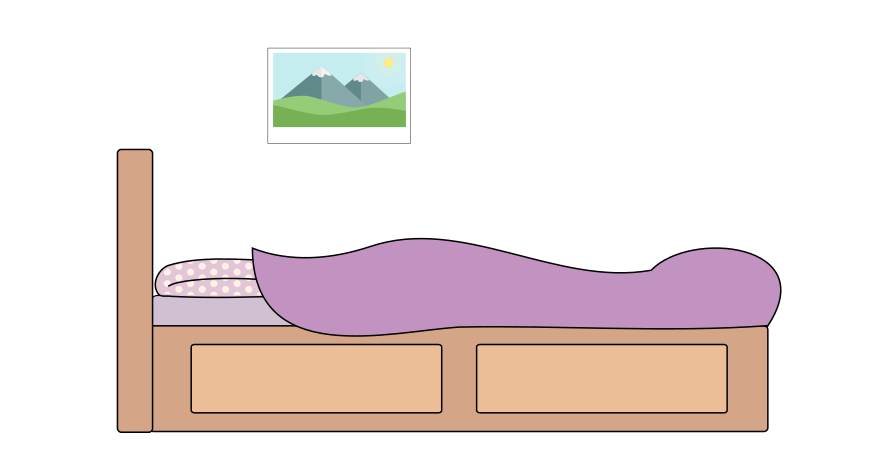
Let's add the charcters and props.
If there are props, you can say: There are the following props - a clock and a lamp.
For the characters, specify the number of characters. Each character should have a name and a short description.
eg: There are 2 characters. The first one is a male with a beard. His name is Adam. The second is a female wearing glasses.
If there are props, you can say: There are the following props - a clock and a lamp.
For the characters, specify the number of characters. Each character should have a name and a short description.
eg: There are 2 characters. The first one is a male with a beard. His name is Adam. The second is a female wearing glasses.
Move, resize images by clicking in canvas above
Reorder images by dragging below (only Desktops)
Edit Images
Reorder images by dragging below (only Desktops)
Edit Images
Images Added:
Create GIF
Create WebM Create MP4
Publish
Create WebM Create MP4
Publish